

Have you ever tried to copy photos from your iPhone to your Windows PC, only to find you cannot open them? This happens because Apple uses a modern image format called HEIC (High Efficiency Image Container), which many websites, government portals, and Windows apps still do not support.
Most online converters force you to upload your private photos to their cloud servers, wait for them to process, and then download them one by one. This is slow and creates a privacy risk.
The Xiphos Webcraft HEIC to JPG Converter is different. It is a powerful, offline image converter that processes files directly in your browser. Your photos never leave your device.
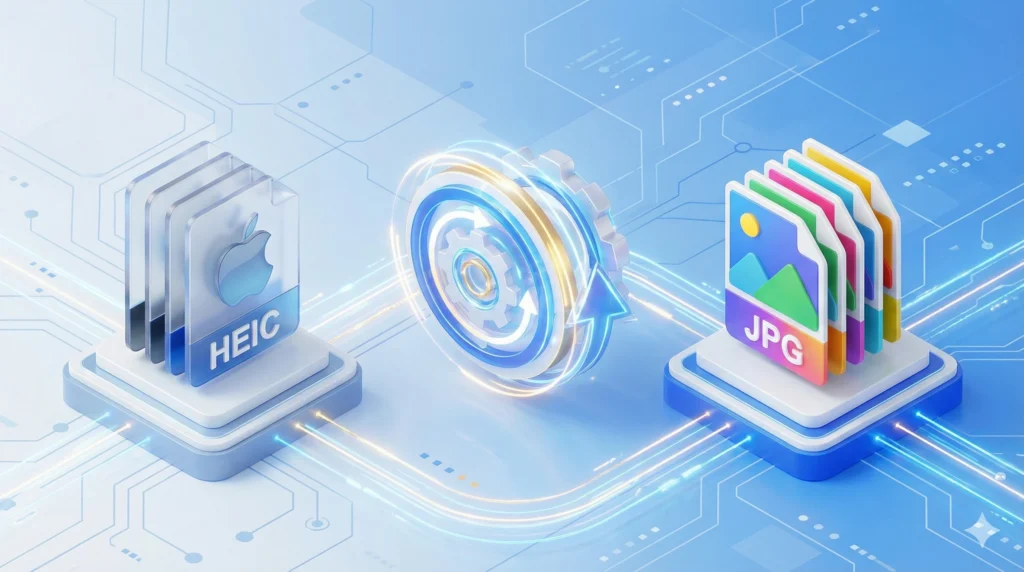
We built this tool for photographers, real estate agents, and regular users who value speed and privacy. Here is why it beats standard “cloud” converters:
100% Private (Client-Side): Unlike other sites that store your images, our tool uses advanced JavaScript to convert files locally on your computer. You can even disconnect your internet, and it will still work perfectly.
Advanced Quality Control: Need a smaller file size for email? Or maximum quality for printing? Use our new Quality Slider to adjust the compression level from 10% to 100%.
Multiple Formats (JPG & PNG): While most tools only output JPG, we allow you to convert HEIC to PNG if you need lossless quality with transparent backgrounds.
Unlimited Batch HEIC Converter: Select 10, 50, or even 100 photos at once. Our tool converts them in bulk and lets you download everything as a single ZIP file.
Using our HEIC to JPG Converter is incredibly simple. Follow these steps:
Select Your Format: Choose “JPG” for general use or “PNG” for high quality.
Adjust Quality: Use the slider to balance image quality vs. file size (90% is recommended).
Upload Files: iPhone Photo to JPG – Click the upload box or drag and drop your iPhone photos. You can select multiple files at once.
Download: Wait a few seconds for the conversion to finish, then click “Download All” to save your new images.
HEIC is a file format developed by the MPEG group and adopted by Apple in iOS 11. It is superior to JPG because it keeps images smaller without losing quality. However, compatibility is still a major issue.
If you are applying for a job, uploading documents to a government portal, or listing a product on Amazon, you will almost always need a standard JPG file. Our tool bridges this gap instantly.
1) Is this HEIC converter really free? Yes. Xiphos Webcraft provides this as a free utility. There are no daily limits, no watermarks, and no hidden costs.
2) Can I convert HEIC on my phone? Absolutely. This tool works on any modern browser, including Chrome and Safari on Android and iOS devices.
3) Does it keep the metadata (Exif)? Currently, the conversion focuses on the visual image to ensure maximum compatibility and smallest file size.
While this tool solves a simple image problem, Xiphos Webcraft specializes in solving complex business problems. We build high-performance websites, custom E-commerce stores, and secure web applications.
If you are a Windows user, you might have noticed that the default Photos app often displays a grey screen or an error message when trying to open iPhone pictures. This is because Microsoft does not include the HEIC codec by default. While you can pay to download the “HEIF Image Extensions” from the Microsoft Store, our tool offers a faster, free alternative.
By converting your HEIC files to JPG, you eliminate compatibility issues entirely. Your new images will work instantly on:
Older Windows Versions: (Windows 7, 8, and early Windows 10 builds).
Android Phones: Older devices that don’t support High Efficiency formats.
Smart TVs: Which often fail to read Apple’s proprietary formats from USB drives.
Web Browsers: Most browsers (Chrome, Firefox, Edge) still cannot display raw HEIC files natively on websites.